OBS Studio is a free, open-source tool widely used by livestreamers on platforms like TikTok, Twitch, YouTube, and Facebook Gaming. Enhancing your stream with overlays can significantly boost visual appeal and engagement. OBS supports flexible overlay options—from static images to dynamic browser-based elements.
1. What Are Overlays?
Overlays are graphic layers placed on your livestream. Examples include:
They enhance branding and make your stream more engaging and recognizable.
2. How to Add Overlays in OBS
Download or Create Your Overlay
Use pre-made designs from platforms like StreamElements, Nerd or Die, or Own3D
Or design your own in Canva or Photoshop
Import the Overlay into OBS
In OBS, click the + under Sources
Choose the appropriate source type:
Image – for static overlays
Media Source – for animated overlays
Browser Source – for dynamic overlays (alerts, widgets)
Browse and select your file
Adjust the position and size within your scene
3. Tips for Effective Overlays
Keep It Simple and Clean
Limit to essential elements: webcam frame, alert box, chat feed
Avoid clutter to focus viewer attention
Optimize Placement & Visibility
Position overlays away from critical onscreen content (e.g., gameplay, face)
Use strong contrast so text/icons are clear and readable
Maintain Consistent Branding
Match your brand’s color palette, fonts, and logos
Use themed layouts for special streams (e.g., “Just Chatting” style)
Use Appropriate Dimensions & Ratios
Design for 1080p (1920×1080 px canvas)
Example sizes: webcam frame at 320×240 px, alert box at 500×150 px
Keep proportions intact to avoid distortion
Incorporate Subtle Animation
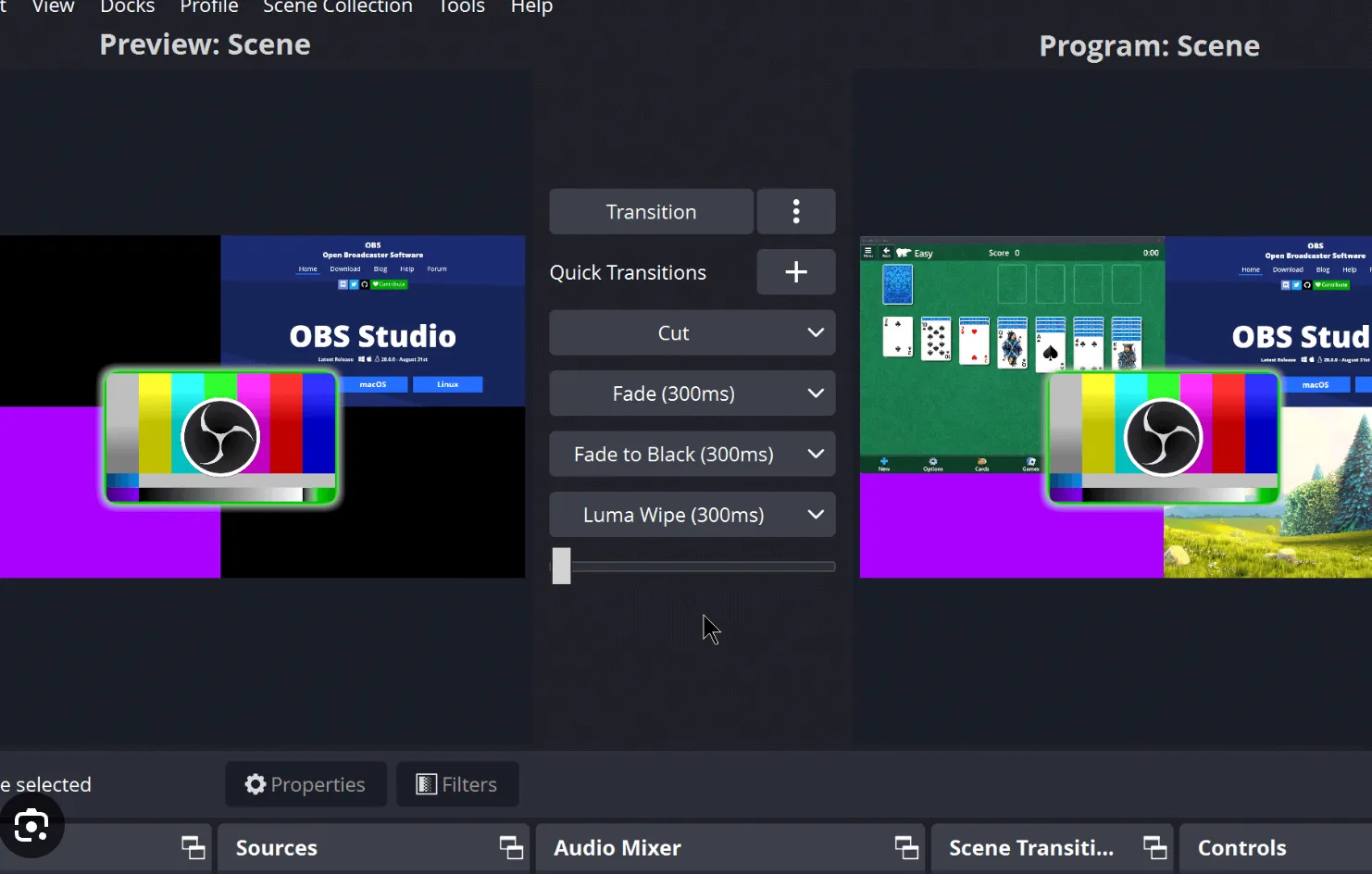
Use OBS’s Studio Mode to preview overlays
Refresh Overlays Periodically
4. Integrating Zukaa for Interactive Overlays
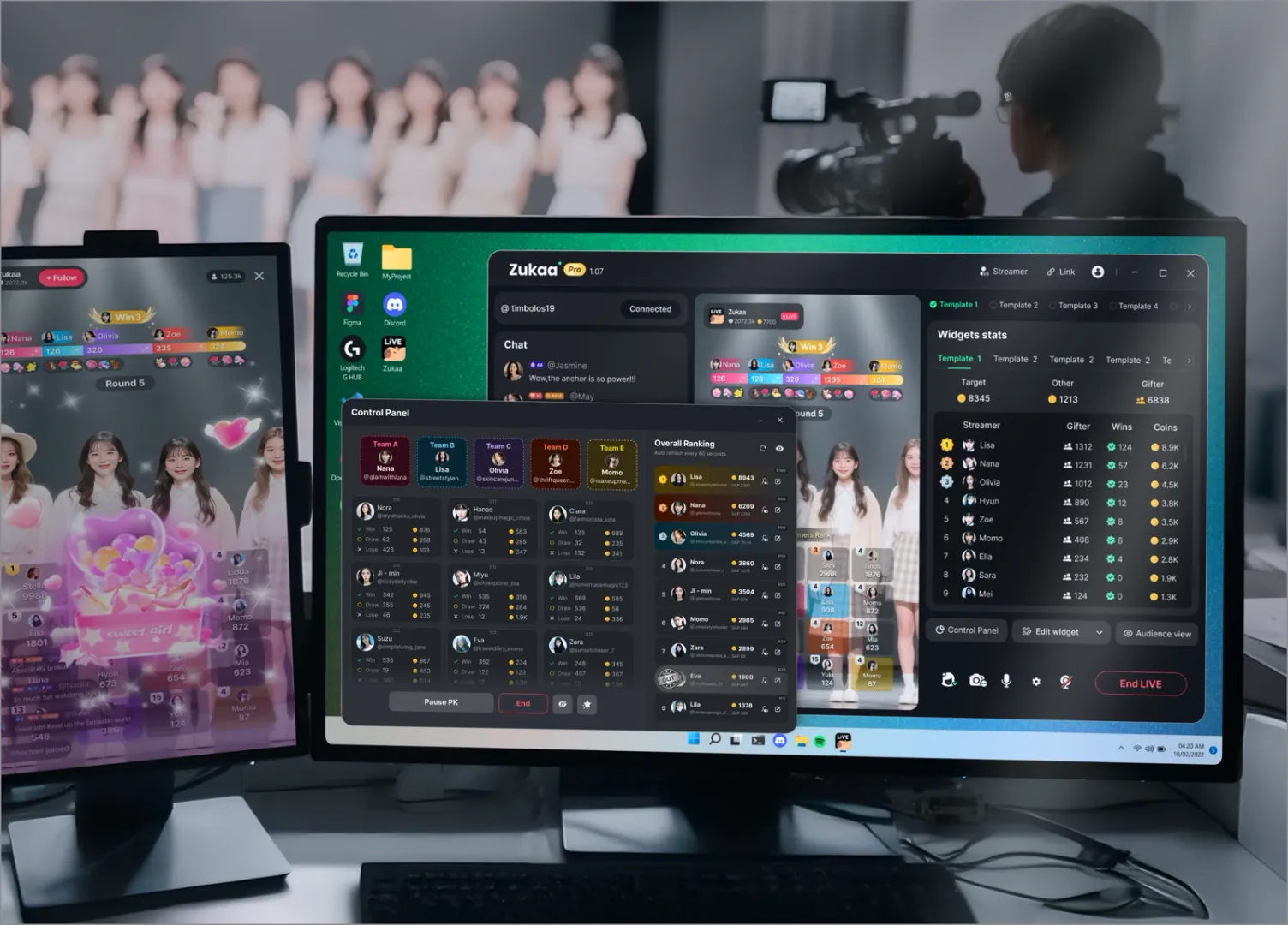
Zukaa offers interactive features designed to boost viewer engagement. With OBS, you can add:
Gift Tracker & Supporter Leaderboard
Showcases top fans and recent gifts to enhance recognition
Interactive Mini-Games
Polls, countdowns, emoji explosions triggered by viewers
Creator & Team Dashboards
On-screen stats for moderators or multi-streamer teams
Final Thoughts
Overlays are more than decoration—they're vital tools for a polished, interactive livestream. Whether you're adding a sleek frame or integrating dynamic widgets from Zukaa, OBS Studio gives you the control to elevate your stream. Follow design best practices, test regularly, and keep experimenting. With the right setup, you’ll convert casual viewers into loyal fans and supercharge your broadcast quality.